cse15l-lab-reports
Lab Report 1
Setup, Remote Access, and UNIX Commands
Alvin Xiao, March 31, 2022
This report will be a tutorial on how to log into a course-specific account on ieng6, as well as other useful features one can use through this remote connection.
___
Installing VS Code
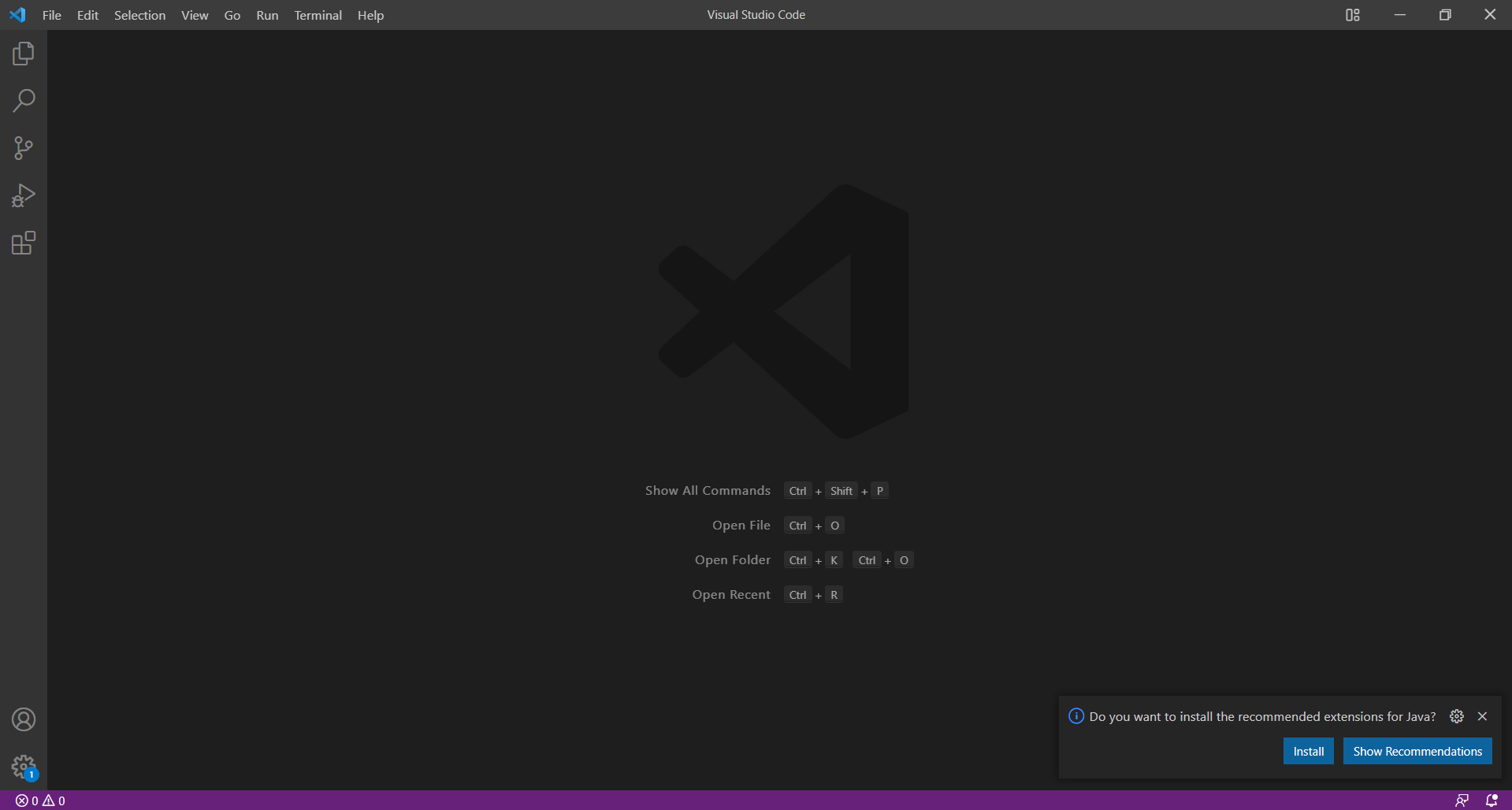
To install VS Code, simply go here and download the right one for your operating system. After it finishes installing, it should look something like the image below:
Remotely Connecting
To log into a course-specific account, know the user of the account. Then, type $ ssh cs15lsp22___@ieng6.ucsd.edu and fill in the blank with the unique user. Enter the password and it will look something like this:

Trying Some Commands
There are many different UNIX commands to run. Some examples are:
$ cd$ ls$ mkdir$ cat
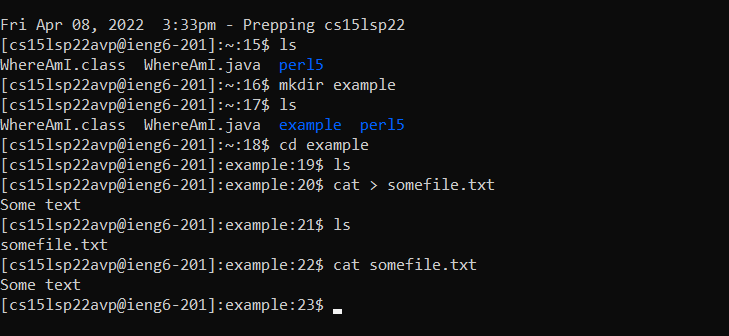
In the image below, an example directory is created, as well as a text file with some text in it. The image shows what commands were used to achieve this.
Moving Files with SCP
SCP allows files to be transferred from the client to the host server. Run $ scp <file name> cs15lsp22___@ieng6.ucsd.edu:~/ in order to do so.

Setting an SSH Key
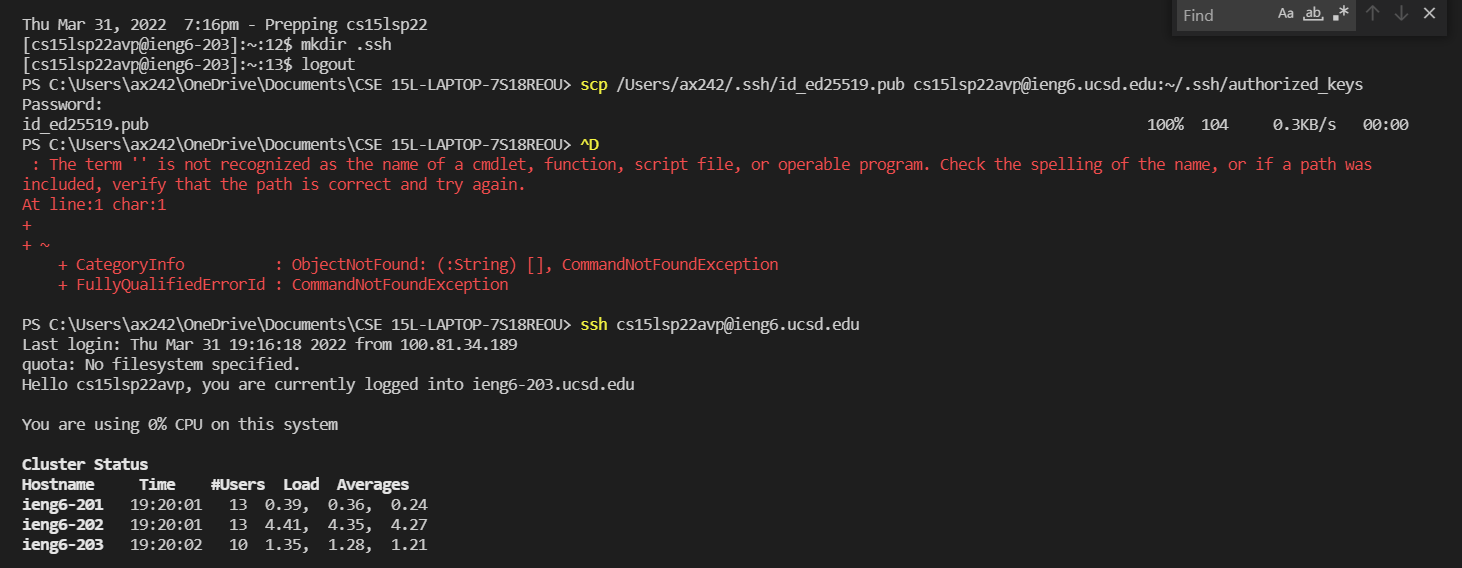
To set up an SSH key, generate a pair of public and private keys. Then, store the public key on the remote server so that it is possible to log in without a password, as shown below.
Optimizing Remote Running
It is possible to run commands without logging into the course specific account. Follow this format: $ ssh cs15lsp22___@ieng6.ucsd.edu "<command>". More than one command can be run with a semicolon.
